How to Play N64 Games on PC: A Beginner Emulator Setup Guide
The N64 moved games into rough-edged 3D. Emulation has quietly solved most of its setup headaches; this guide gets you playing in under an hour.
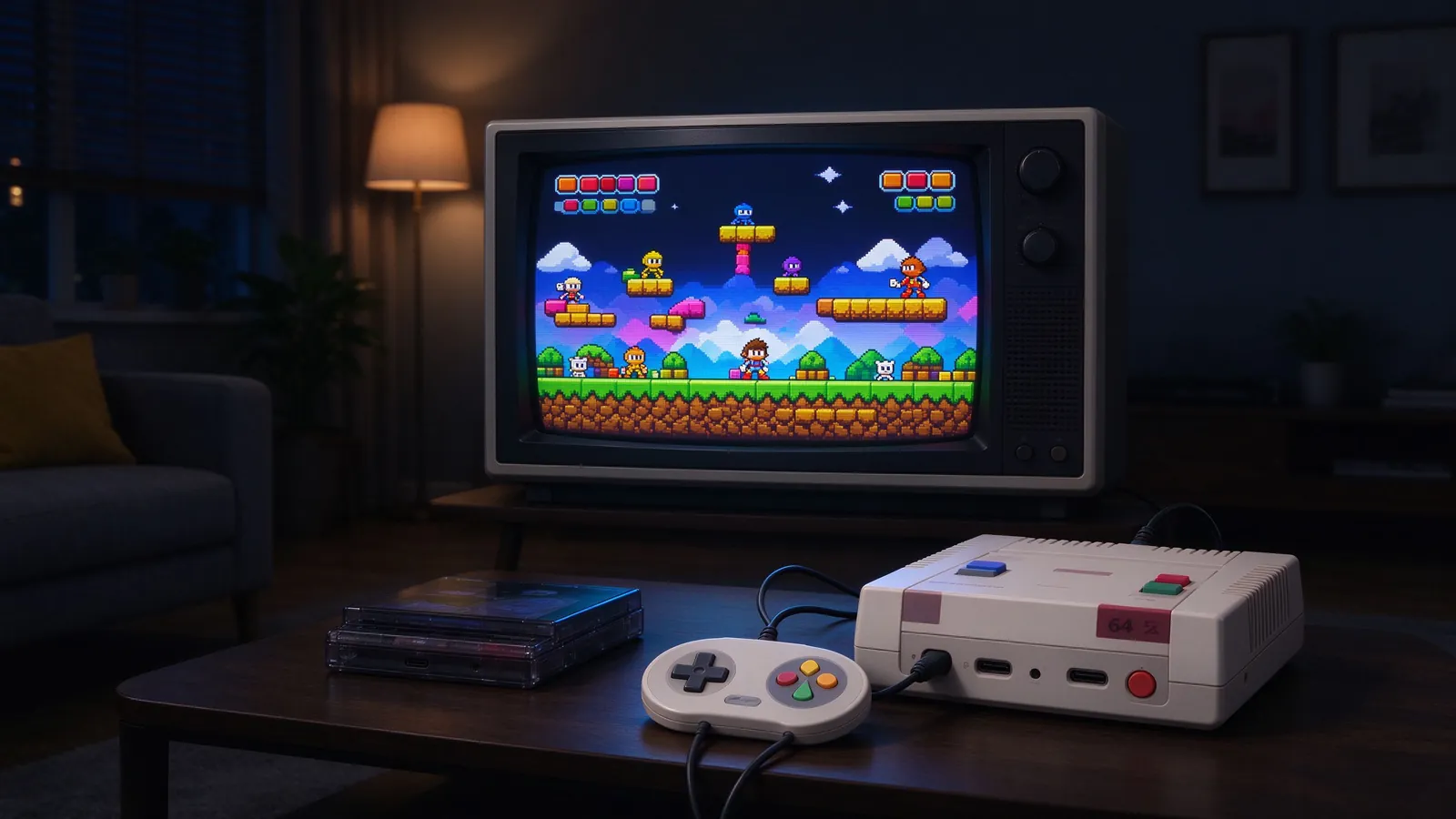
Nintendo 64 games were built around a four-button C pad, awkward cartridges, and a controller that split player opinion the moment it shipped. On a modern PC or Android device, none of that physical baggage matters: a free emulator handles the hardware emulation, and you remap everything to a comfortable pad. If your goal is to revisit Super Mario 64, Ocarina of Time, or GoldenEye without digging through a closet, this beginner guide covers the whole path.
What you need before starting
- An emulator core or standalone program: Project64 on Windows, Ares as a cross-platform option, or Mupen64Plus-based cores inside RetroArch.
- ROM files usually ending in .z64, .n64, or .v64, kept in a single dedicated folder.
- A controller: keyboard works for a quick test, but a modern Xbox-style pad handles the analog stick and face buttons far better than the old N64 layout.
As with other systems, build your library from copies of games you already own or public-domain and homebrew titles, and keep the legal boundaries of your region in mind.
Step 1: Choose a beginner-friendly emulator
Project64 remains the easiest first stop on Windows: install, extract, point it at your ROM folder, and double-click a title to boot. Ares is a clean multi-system alternative with solid N64 accuracy and fewer plugin headaches for newcomers. If you already use RetroArch for SNES or PlayStation games, install the parallel or Mupen64 core through the online updater and keep one frontend for every system. Do not install five emulators in the first afternoon; get one game running before comparing features.
Step 2: Organize the ROM folder
Create a folder like Emulation/N64/ and keep file names readable, such as The Legend of Zelda Ocarina of Time (U).z64. Region tags help when a title fails to boot, because a mismatched or corrupted dump usually explains the problem before any emulator setting does. Most standalone programs scan the folder into a visual library; RetroArch loads content manually from the same folder.
Step 3: Map the controls
The old N64 layout centered on one big analog stick, A/B, four C buttons, Start, L and Z. Modern emulators let you assign C-buttons to the shoulder buttons, Z to a trigger, and A/B to the face buttons. Spend five minutes making a profile you can save, so the mapping survives every restart. Keyboard players usually map the stick to WASD, C-buttons to arrow keys, and A/B to Z and X, but tight platforming games are noticeably better on a pad.
Step 4: Graphics and audio settings worth touching
Leave defaults for the first boot, then adjust four items: internal resolution (2x or 3x clears up the fuzzy originals without overloading a laptop), aspect ratio (4:3 for an authentic frame, unless the core offers a proper widescreen hack), texture filtering (smooth or nearest depending on taste), and audio plugins, where a buffer tweak fixes most crackling sound. N64 music was synthesized in real time, so a wrong audio plugin can make soundtracks sound broken; switch cores if the music sounds wrong rather than old.
Step 5: Saves and save states
N64 games used Controller Pak and memory card saves, emulated inside the program. Save states freeze the exact frame and work well for tough boss fights, but they can break between emulator versions. Finish an in-game save before closing a long RPG, and use states as a safety net rather than the only save system.
Ten N64 games to try first
- Super Mario 64 – the 3D platformer blueprint.
- The Legend of Zelda: Ocarina of Time – adventure in a time loop.
- Mario Kart 64 – chaotic four-player kart chaos.
- GoldenEye 007 – console shooter pioneer with multiplayer splitscreen.
- Banjo-Kazooie – charming collectathon platforming.
- Star Fox 64 – rail shooting with branching routes.
- Perfect Dark – GoldenEye’s spy sequel with deeper weapons.
- Paper Mario – light RPG action with a storybook look.
- Super Smash Bros. – the original crossover brawler.
- F-Zero X – blistering anti-grav racing.
Common issues and quick fixes
Black screen on boot usually means a bad dump or missing BIOS asset; swap the ROM copy before changing settings. Slow audio under emulation often clears with a larger audio buffer. Broken textures after updating the graphics core can be fixed by clearing the texture cache in the options menu. Once a system clicks into place, the same recipe applies to other consoles; PlayStation fans, for example, can pair these steps with the DuckStation setup notes already covered on this site.