How to Emulate Game Boy and Game Boy Color Games on Phone and PC
Tiny screen, huge library. Here is the practical route to playing Game Boy and Game Boy Color ROMs on a phone or PC without fuss.
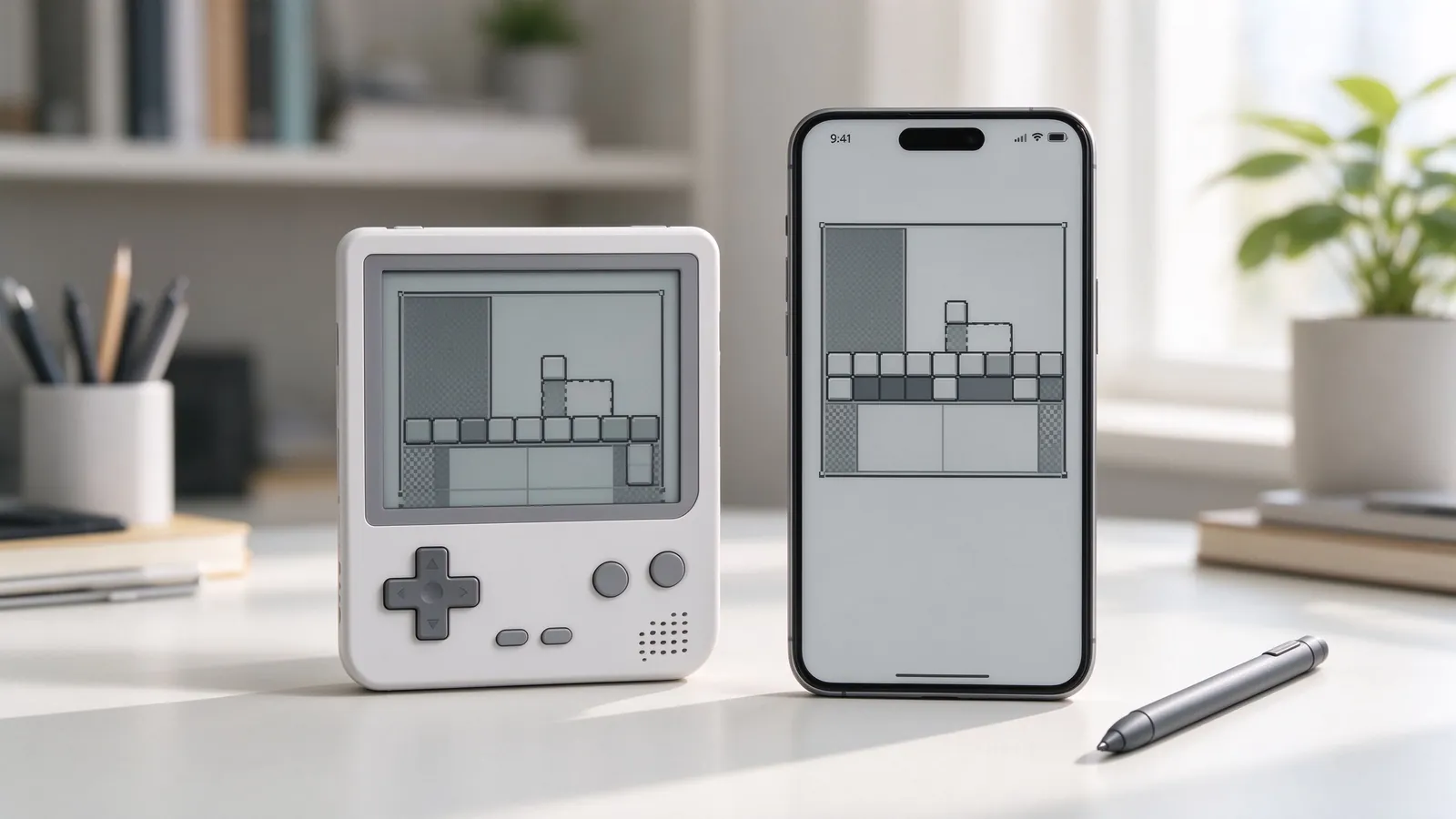
Game Boy and Game Boy Color games were built for pockets: short sessions, durable controls, and batteries that lasted for weeks on a set of AAs. Modern emulators keep the original games playable on devices you already own, while adding quality-of-life tools like save states, screen filters, and faster transfers between sessions. This guide covers the practical choices for PC and mobile, the settings that matter most, and a short starter list for newcomers.
Pick an emulator by device
Windows and macOS: mGBA and VisualBoyAdvance-M are the usual recommendations. mGBA focuses on accuracy and clean rendering, and it runs most Game Boy and GBC cartridges at full speed on modest machines. VBA-M offers plenty of customization and broad compatibility with older ROM hacks.
Android: several established emulator builds support both .gb and .gbc files with on-screen layouts and external controller support. Verify the source you download from, and avoid apps asking for unnecessary permissions.
iOS: emulator availability in the app store changes often as policies shift. Check what is currently distributed, use a trusted build, and remember that web wrappers and browser ports are rarely the best long-term choice for longer games.
ROM formats and folders
Game Boy ROMs commonly use .gb, Game Boy Color ROMs .gbc, and some compilations or hacks use .zip or .7z archives that emulators can open directly. Keep one folder per system, name files with their title and region, and separate color and monochrome games if you prefer a strict historical experience. Most emulators accept the same folder structure across machines, making it easy to sync saves between phone and PC later.
Screen and color settings
Authentic mode leaves the picture green-tinted and blocky; modern emulators offer LCD dot-matrix filters, backlight palettes, and GBC color palettes for monochrome games. Try the default palette first, then swap colors if a game looks muddy. Keep a 1:1 pixel scale where possible; stretching the small original frame over a wide monitor washes out the charm. For long reading-heavy RPGs, a warm color filter reduces eye strain in dim rooms.
Saves: battery saves versus save states
Original cartridges used a small battery to keep progress alive; batteries died after decades, which is one reason preservation matters. Emulators reproduce the battery save file next to the ROM, and save states snapshot the exact frame. Use save states for hard sections, but finish an in-game save before quitting a long RPG. RTC-driven games, notably Pokemon Gold, Silver and Crystal, depend on a real-time clock setting in the emulator; enable it so time-based events and evolving Pokemon behave as expected.
Controllers and link cable tricks
On PC, map A to a face button and B to another, Start and Select to shoulders, and keep D-pad directions on either the keyboard arrow cluster or the pad d-pad. External USB pads work without drivers on most systems. Link cable features such as trading Pokemon or multiplayer racing were hard on original hardware; many desktop emulators support emulated links between two instances or local netplay, which is worth exploring after you finish a solo run.
Starter games to download first
- Pokemon Gold and Silver – the two-time daily habit on the Color machine.
- The Legend of Zelda: Link’s Awakening DX – a monochrome classic with a Color-only dungeon.
- Metroid II: Return of Samus – short, moody exploration before the remake polished it.
- Wario Land II – power-up platforming with health-as-mechanic charm.
- Tetris DX – the perfect five-minute arcade escape.
- Kirby’s Dream Land 2 – relaxed sidescrolling with animal friends.
- Donkey Kong Land III – chunky platforming for short commutes.
Once this library is comfortable, moving to the GBA catalog with the same emulator family keeps the learning curve short, and portable RPGs pair naturally with the handheld titles already covered in the melonDS guide on this site.