Best Controller Choices for Retro Emulation on PC and Android
The right pad decides whether a retro port feels authentic or limp; these controller choices cover wired USB pads, wireless models, and Android clip-on grips for emulation.
Most emulators run perfectly well on a keyboard for ten minutes, then show their limits the moment a tight jump chain or a quarter-circle motion appears. A decent controller removes that gap at a modest price, and modern Bluetooth models work the same way on a phone as on a PC. This guide breaks down the practical choices for retro emulation, what each layout suits, and how to avoid spending extra on features you will never use.
Why the original feel matters
Retro systems came with very different button counts and stick feel. The NES pad had two face buttons and no stick; the SNES pad added X, Y, shoulder buttons, and a diagonal-friendly D-pad; the PlayStation pad introduced the dual analog sticks a full generation later. Emulators remap anything to anything, but a pad whose face buttons sit close together naturally plays side-scrollers faster than a wide modern Xbox layout. This is preference, not rule: many players win fights on modern pads, but knowing the tradeoff helps you pick.
Wired USB pads for Windows PC
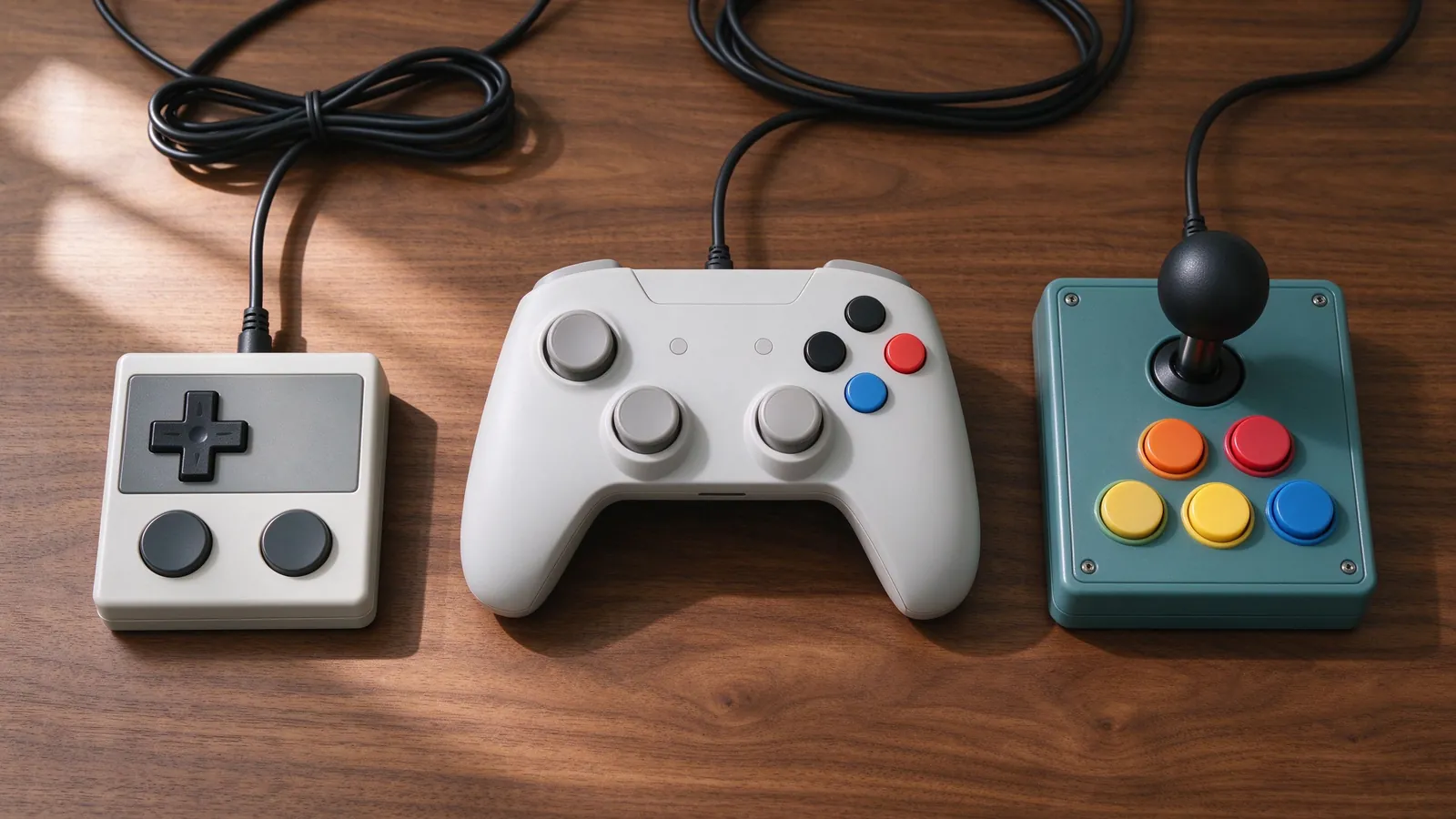
- Xbox 360-style or Xbox Series wired pad. Plug-and-play on Windows, solid analog sticks, and roomy buttons. Best for early 3D, racing, shooters, and modern-style remakes. The slightly soft D-pad suits fighting games less well than classic pads.
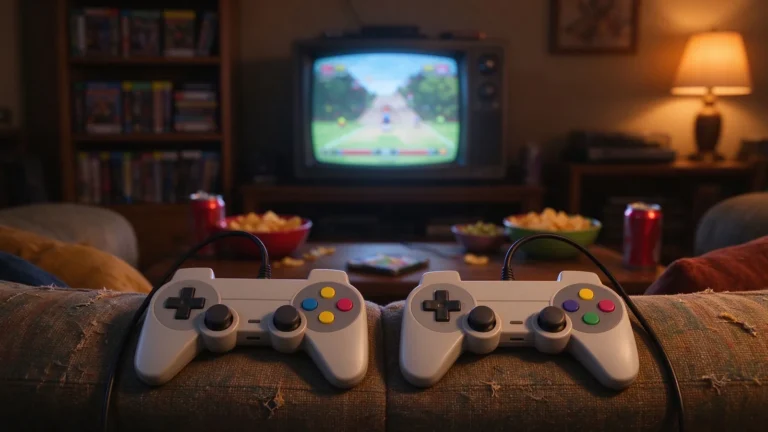
- SNES or Genesis USB replica pads. Compact four-button layout, tight D-pad, short cable, and cheap. Ideal for 8-bit and 16-bit side-scrollers, run-and-gun shooters, and arcade fighters that never needed an analog stick. Build quality varies by brand, so pick one with a metal cable strain relief if possible.
- DualShock 4 or DualSense via USB. Excellent analog feel, well-spread face buttons, and touchpads you can ignore. Great for PlayStation-era emulation and games where gentle stick movement matters.
Wired connections win for netplay and fast-paced fighters because they drop frames and lag least; cable length matters more than reviewers admit for a couch setup.
Wireless pads and adapters
Xbox wireless controllers pair through an official adapter on PC and offer the same battery-backed freedom at slightly higher latency. DualShock 4 and Switch Pro pads connect over Bluetooth without extra dongles on Windows and Android, though Steam Input or a mapper may be needed to sort the button numbering. When you want original hardware feel wirelessly, adapters let real SNES, N64, or GameCube controllers speak to USB; these pay off for collectors, but add cost and occasional driver quirks. For local two-player on one PC, two cheap wired pads usually beat fighting over Bluetooth battery levels.
Android controller choices
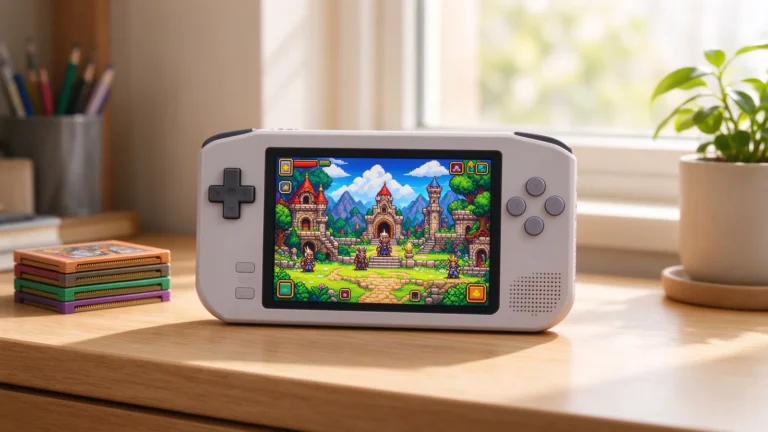
Phone emulation splits into two camps. Clip-on gamepads hold the phone between the grips, run on built-in battery, and fit most cases; they suit portable arcade and 16-bit sessions on a bus or bed. Bluetooth pads at a table mirror the PC choice and pair with an Android TV box for living-room play. Check that the game mode maps to standard Android controller profiles rather than a proprietary app, because standalone emulators such as PPSSPP and RetroArch read standard gamepad input directly. Charge before travel, since a dying mid-set fighter session wastes more time than any setting tweak.
Mapping software and profiles
RetroArch saves a per-core controller profile, so map once and keep it; standalone programs usually store their own binding file in the emulator folder. On Windows, Steam Input can remap any pad globally, and on Android Gamepad Mapper-style apps fix odd button layouts before the emulator opens. Rebind shoulder buttons to cover console extras such as N64 C-buttons, and set Turbo only on game lists where the console itself offered it. Save-states and shortcuts work best on unused hotkeys rather than buttons you press constantly; our emulator basics guide covers hotkey placement alongside other core habits.
A practical shortlist
Budget first: a wired SNES-style pad for 8-bit and 16-bit libraries, plus a basic Xbox-style wired pad for analog titles. Add a Bluetooth clip pad only if phone sessions matter most. PlayStation-era players benefit from a DualShock-family pad; pair the choice with a DuckStation setup pass so rumble, analog, and save cards all agree on the same device. Avoid purchasable adapter stacks on day one: use the pad in hand, notice which games feel wrong, then buy the specialist item that fixes that exact gap.