Retro Emulator Frontends and Launchers: Setting Up One Library for Every System
An emulator frontend turns a folder of separate programs and backup ROM files into one browsable library, and this setup guide covers picking a launcher, organizing systems, and keeping mappings consistent on Windows.
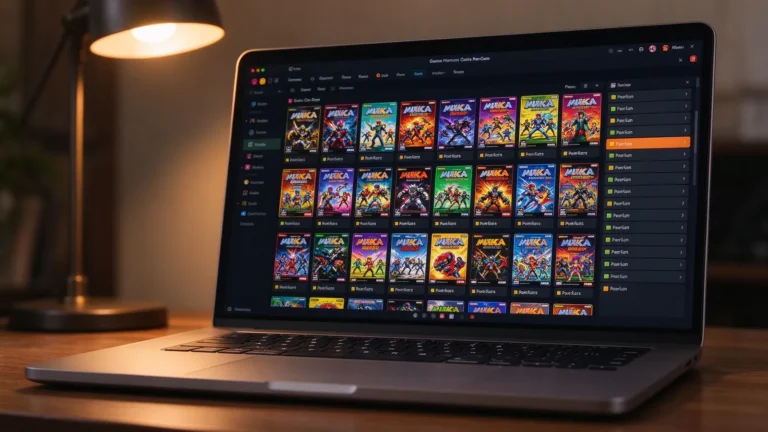
Installing emulators one at a time works for a weekend, but a mixed shelf of NES, SNES, Genesis, PS1, N64 and arcade titles quickly becomes a folder hunt. A launcher frontend sits above the cores and standalone emulators and provides a single menu, cover grid, controller navigation, per-system bindings and shared save slots. RetroArch bundles many cores inside one program, while desktop frontends such as EmulationStation, Pegasus and LaunchBox point to apps you already keep on disk. The practical rule is simple: use legally owned backup files, public-domain titles and homebrew only, put every console in its own folder, and treat the menu program as a replaceable layer so it never mixes with ROM data or saves.
Why one shared library beats scattered emulator windows
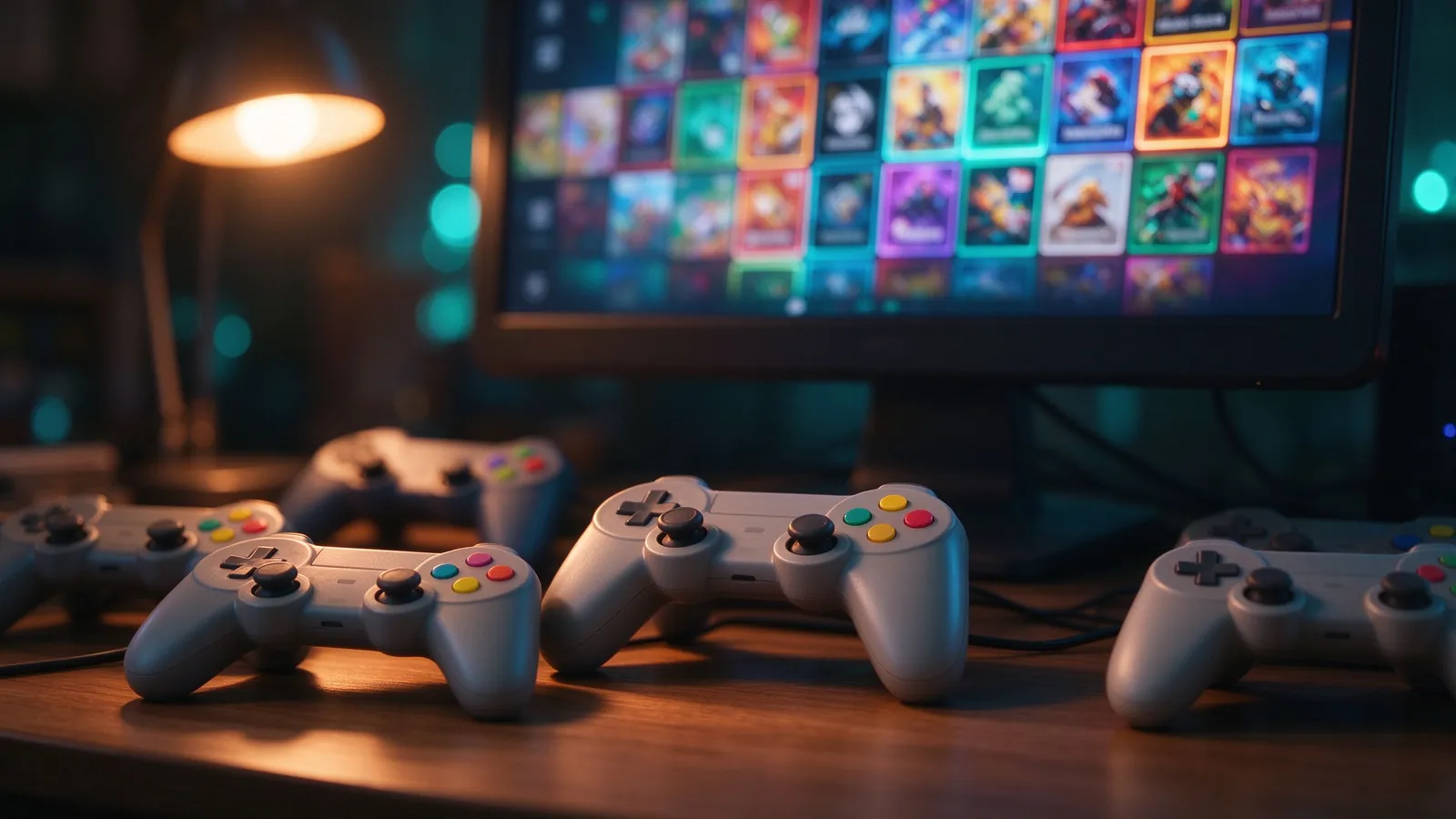
When each emulator runs separately, every app remembers its own controls, saves live in a different subfolder, and you reopen software for Castlevania IV, Streets of Rage 2 or a PS1 RPG without a common “last played” list. A shared library keeps play counts, favorites, ratings and resume points in one place, and two pads can be remembered per player slot across cores. Scrolling a cover grid also beats opening a directory of files: you pick the picture, the frontend launches the right core or executable, and it closes back to the same menu. This matters most after the collection passes a few dozen titles, when the goal shifts from trying one game to curating a set you revisit weekly.
Pick a launcher that fits how you actually play
RetroArch remains the lightest single-install option on Windows: it stores cores, assets, controllers and playlists together, and its online updater replaces a fresh download for each core. The beginner notes in our RetroArch setup guide walk through downloading a stable core set before adding media. A desktop graphical frontend such as EmulationStation or Pegasus suits players who keep separate emulators like a PS1 renderer and a GameCube app, since the menu simply launches those programs and reads back their save folders. LaunchBox leans toward a cabinet-style layout with large boxes for couch play. Avoid running two frontends against the same metadata database at once; choose one menu, and reserve the second app for testing rather as a daily driver.
Folder structure every system can reuse
A clean root keeps later backups painless. Under one parent folder, make a roms directory with one subfolder per console, such as roms/nes, roms/snes, roms/genesis, roms/psx and roms/arcade, then mirror saves, states and screenshots with the same subfolder names. Name files as Game Name (USA).zip or Game Name (Europe).cue so scrapers and the frontend match artwork without guessing. Put PS1 BIOS files in a dedicated bios folder rather than inside game directories. The workflow in our guide to organizing a ROM library explains duplicate removal and region sorting, which keeps a large front-end playlist short and predictable.
Cores, controls and hotkeys bound once per system
Assign a default core to each playlist before touching mappings, because the frontend should launch NES with one core and Genesis with another rather than asking every time. Create player-one and player-two bindings once, then copy them across similar cores. Reserve a few hotkeys: quick save, quick load, fast forward, menu toggle and quit to frontend. Keep N64 and PS1 analog settings separate from pure D-pad platformers, where a stick can drift off a thin ledge. Export or copy the binding config before reinstalling, since these small files are faster to back up than any save data.
Covers, themes and cleanup without bloat
Store box art and screenshots under a per-system media folder and let the frontend reference files instead of embedding a giant database. Start with a plain theme on a laptop and only add heavy animated skins on a stronger desktop, where they drain frame rate while browsing. Hide entries that fail to boot or are missing the required files, and mark duplicates rather than deleting them in bulk. Back up playlists, controller configs and the frontend settings folder after each batch of changes; if the menu ever breaks, the ROMs, states and saves stay untouched, and reinstalling the launcher rebuilds the same library in an afternoon.