The Best Retro Emulator Apps on Android: A Beginner Setup Guide
Retro games on a phone work best with a small, deliberate Android emulator setup: one front end or one dedicated app per system, comfortable controls, and a library organized before playtime begins.
A mid-range Android phone emulates 8-bit, 16-bit, and many portable classics far better than it emulates a desktop console, and it fits a pocket for commutes, lunch breaks, and travel beds. The tricky part is not raw power but app choice, control mapping, and storage habits. Official app stores carry legitimate front ends and standalone emulators; game data still must come from discs and cartridges you own, homebrew titles, public-domain releases, or official re-releases. This guide covers app choices, controls, stable settings, and tidy library habits.
Front end versus dedicated emulator apps
Two common paths emerge on Android. A multi-system front end such as RetroArch wraps separate lightweight cores behind one menu, unified save slots, touch overlays, and shaders, suiting players who keep NES, SNES, Genesis, GBA, and arcade games together. Standalone dedicated apps win where a system needs fine-tuned audio, enhanced UIs, or fast save handling: PPSSPP for PlayStation Portable titles, MelonDS for Nintendo DS, and similar mature programs per platform. Pick one main path rather than installing a dozen overlapping apps early. Start with the core collection on the front end, and add a dedicated app only when a specific system runs poorly in the shared player. Keep emulator apps on internal memory, since moving them to an SD card can break save paths and touch layouts.
Systems that run well on most phones
- 8-bit and 16-bit systems. NES, SNES, Genesis, Game Boy, Game Boy Color, and GBA run smoothly on phones from recent years, often with GPU rendering and smooth upscaling.
- Portable Sony handhelds. PSP titles in PPSSPP benefit from a decent mid-range phone; early and 2D-heavy games run wide open, while 3D racers need modest speed tweaks. See our PPSSPP setup notes for the opening pass.
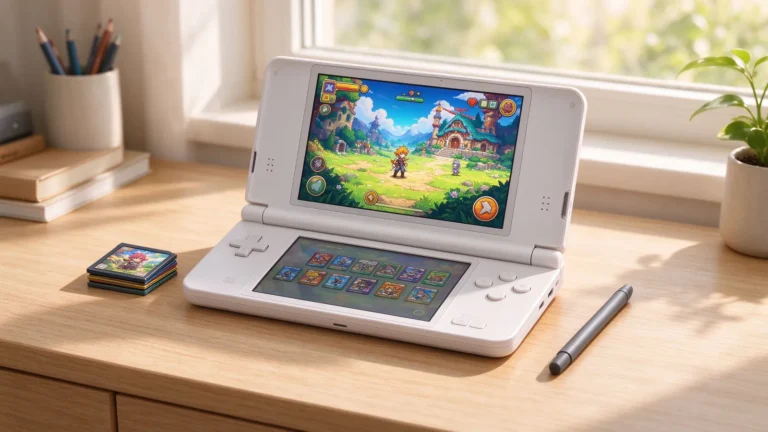
- Nintendo DS and arcade classics. melonDS-style setups work best with a stylus or well-sized touch layout; 2D Neo Geo and CPS arcade games run comfortably on modest chips.
- Heavier targets to approach carefully. N64, Dreamcast, GameCube, and PS2 emulation on Android demand flagships, thermal control, and patience; treat them as experiments after the 2D library feels comfortable.
Portable classics designed for small screens map better to phones than long console campaigns; PSP and GBA titles naturally fit short sessions, and our list of great PSP commute games suggests travel-friendly picks once the app works.
Touch overlays and physical controls
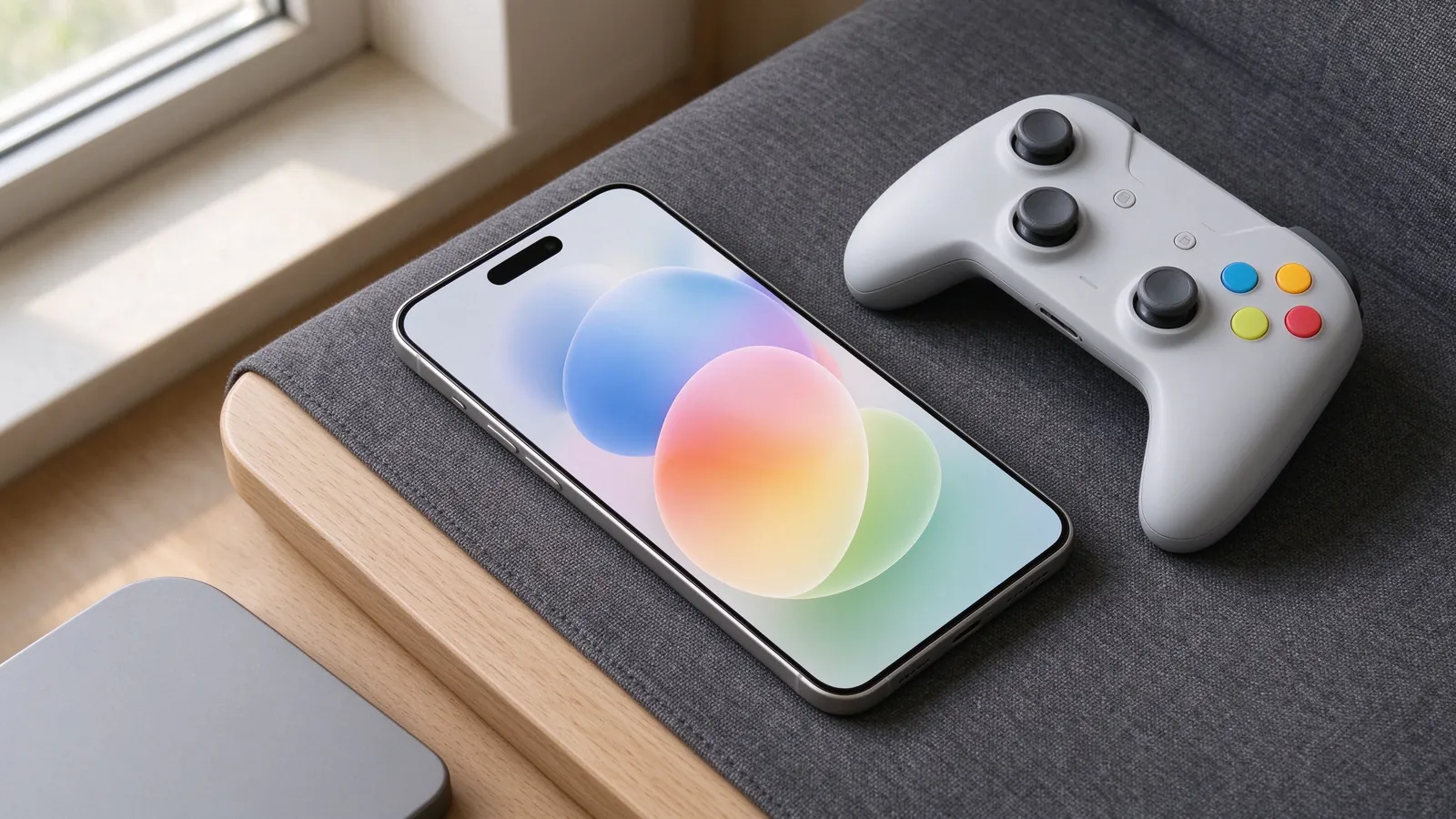
Touchscreen buttons improve with care: shrink unused inputs, keep the D-pad and main action buttons in the thumb zones of your chosen grip orientation, and raise opacity so the picture still shows through. Place quick save and rewind hotkeys on the side away from gameplay, and disable haptic rumble for long sessions because it drains battery. A clip-on Bluetooth gamepad or compact wireless pad changes fighters, platformers, and analog games; the phone maps it through the app’s built-in profile, usually without extra mapping software. For couch or tablet play, a standard Bluetooth pad keeps input out of the way; avoid proprietary control apps that lock the emulator to one vendor. Set the pad mapping once per core and reuse the saved profile across titles.
Performance, audio, and battery settings
Phone heat throttles after twenty minutes, so frame pacing matters more than maximum visual polish. Keep internal resolution at 1x to 2x for 3D systems, disable enhanced texture packs on first run, and leave sound on the default low-latency backend; crackling tracks usually respond to a small buffer increase rather than speed hacks. Enable the frame limit near the original console rate, set rotation per title, and use a wake lock so the screen stays awake mid-game. On battery, switch to lighter 2D cores and lower brightness. Keep game files and saves on the same volume so paths never break after cleanup.
Library organization and legal sources
Create simple folders per system inside a documents directory, use consistent file names, and let the emulator scan once after adding a batch. Save states and memory files live where each app stores them; back that directory before clearing app data or reinstalling. Dump disc and cartridge data from media you own; for trials, public-domain demos, and homebrew releases, use official freeware listings and developer pages, respecting the copyright rules attached to each title. A clean setup: one front end, one dedicated PSP player, a pad if you play often, organized folders, and stable defaults saved before the first long run.