How to Play Classic NES Games on PC: A Beginner’s Setup Guide
The NES turned thirty years old and then some, but its games still play like nothing else on modern store shelves. Here is a no-nonsense way to get them running on your own computer.
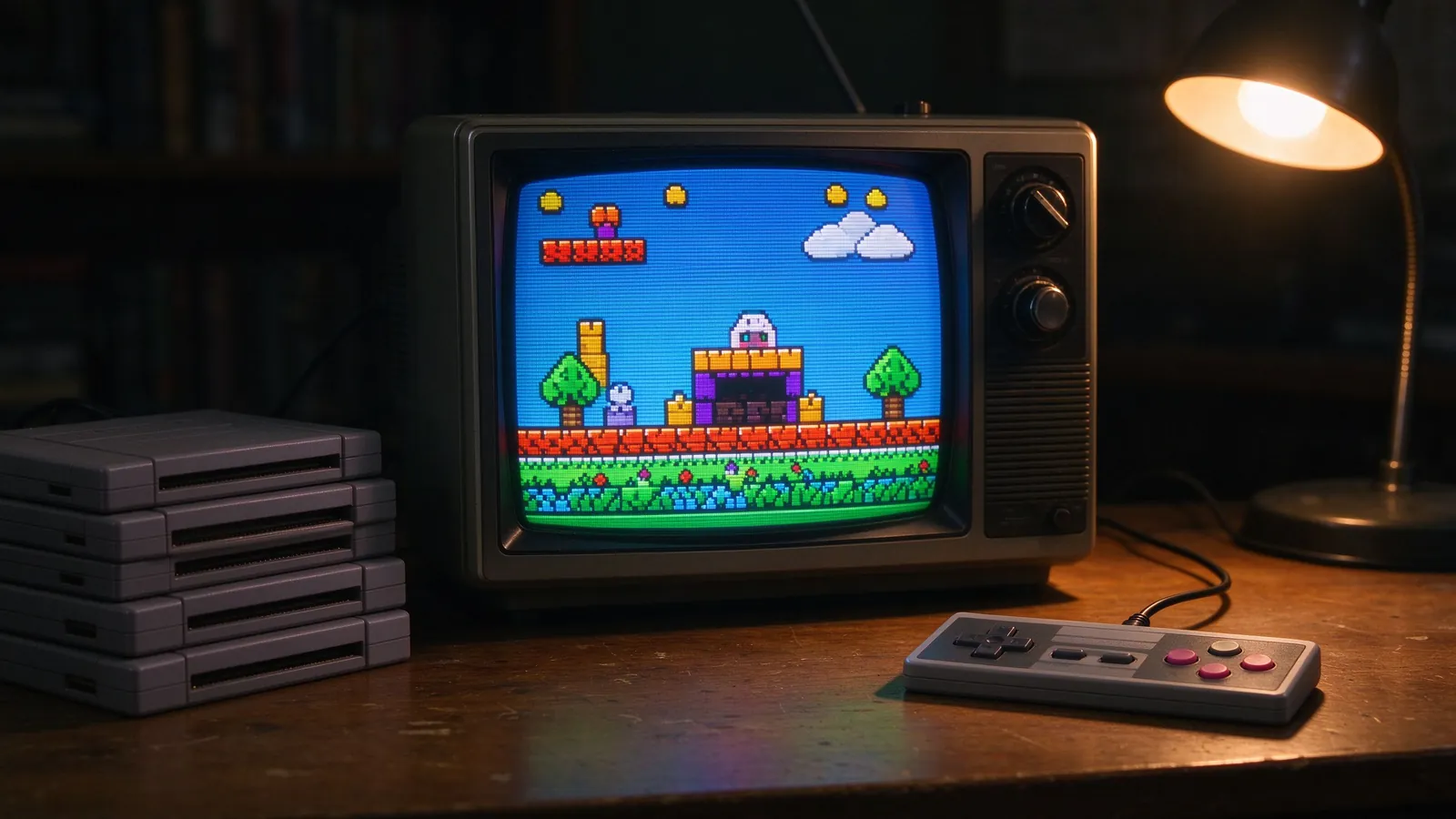
If you grew up with a boxy gray console connected by a two-tone wire to a small CRT, you probably still remember the exact feel of blowing into a cartridge before Mario ran across the first screen. Revisiting those old games today does not mean digging the system out of a closet and hunting for a rare RF switch. A decent emulator, a folder of game files, and half an hour of setup is enough to get the whole library playable on Windows, macOS, or Linux. This guide walks through the whole process the way I wish somebody had explained it to me the first time.
Why bother with NES games today?
Modern consoles push photorealistic graphics and online subscriptions, yet a surprisingly large part of that audience still goes back to 8-bit games. The reason is simple: old NES titles were built around tight level design, short learning curves, and instant replay value. You can sit down for ten minutes, finish a stage, and feel like you actually accomplished something. For people who grew up with the system, it is also a nostalgia bank that streaming services rarely touch. Emulation keeps those games alive without depending on a company deciding to bring them back.
What you actually need
Three ingredients cover most setups:
- An emulator: a program that mimics the NES hardware inside your PC. Good ones are free.
- Game files (ROMs): digital copies of the cartridge data, usually ending in .nes.
- A way to play: a USB or Bluetooth gamepad, or the keyboard if you would rather not buy anything.
A quick note on legal use: emulators themselves are legal software. Downloading game files you do not own the original cartridge or disc for is where most guidelines get murky. Many long-time players dump cartridges they already own, and preservationists keep these titles from disappearing as the hardware ages. Build your collection the way you feel comfortable with, and keep that in mind when browsing file lists.
Step 1: Choose and install a NES emulator
For beginners, Mesen is the usual recommendation. It is free, open-source, runs on Windows, Linux, and macOS, and focuses on accuracy rather than a pile of confusing options. Download the latest build from the project’s official releases page, extract the zip folder wherever you like, and run the executable. No installer is required, which makes uninstalling just as easy.
If you already use RetroArch as an all-in-one frontend, grab the NES / Famicom (Mesen) core from the core downloader instead. One program, many systems under the same menu. Either route works; pick whichever keeps your existing setup simple. A common mistake at this stage is installing five emulators at once. Start with one, get a game running, and add more later if you actually feel the need.
Step 2: Organize your game files
Create one dedicated folder, for example Emulation/NES/, and drop all your .nes files inside. Keep each game under its proper name, such as Super Mario Bros 3 (U).nes, rather than leaving random download tags behind. Inside the emulator, use File > Open to point at that folder once; Mesen remembers your recent list and can also scan a whole directory into a nice visual library.
File naming matters more than people expect. If a game fails to boot, the file is often the wrong region dump, a bad rip, or simply corrupted. Swap in a different copy before blaming the emulator.
Step 3: Pick a controller or map the keyboard
An original-style controller with a USB adapter feels closest to the real thing, but most cheap Xbox-style pads work fine out of the box. In Mesen, open Options > Input and assign the D-pad, A, B, Start, and Select buttons one by one. Save the profile so the mapping does not reset every launch.
Keyboard-only players usually map the D-pad to WASD, A and B to Z and X, and Start to Enter. It works for quick sessions, but platformers with precise jumps (think Ninja Gaiden) feel noticeably better on a pad.
Step 4: Settings worth checking before you play
Skip the deep menus at first, but check four things: video aspect ratio (4:1 square pixels for an authentic look rather than a stretched wide screen), fullscreen toggle for couch play, audio volume and quality, and save-state hotkeys. Save states are the big convenience feature: you can freeze a hard level and resume exactly where you left off, instead of relying on the original game’s password system. Use them, but do not let them replace learning the levels.
Ten classic NES games to start with
- Super Mario Bros. 3 – the peak of 2D platforming on the system; the map screen and power-ups still feel fresh.
- The Legend of Zelda – exploration, secrets, and a world that rewards looking past every tree.
- Metroid – moody, atmospheric exploration that basically invented a whole genre.
- Mega Man 2 – tight boss fights and a soundtrack that every NES fan recognizes.
- Castlevania – whip swings, gothic stages, and one of the tightest difficulty curves on the console.
- Contra – run-and-gun action best enjoyed with a friend on the keyboard or two pads.
- Kirby’s Adventure – softer difficulty but brilliant copy-ability ideas that were ahead of their time.
- Ninja Gaiden – brutal side-scrolling action with famous cinematic interludes.
- Final Fantasy – the original JRPG that started Square’s long journey; slow by modern standards but historically huge.
- Duck Hunt – a short novelty, but it belongs in every retro playlist if only for the dog laugh.
Common beginner problems and quick fixes
Game runs too fast or in slow motion. Check the frame speed setting; it should target 60 FPS for North American titles and 50 for PAL cartridges. Picture looks stretched. Lock the aspect ratio to 4:3 and enable integer scaling if your display supports it. Sound crackles or drops out. Lower the audio latency buffer in the sound options. Controls do not respond. Make sure you assigned the pad to player one, not player two, and save the input profile.
Once one system clicks into place, expanding to others is mostly the same recipe. PlayStation 1 fans, for example, can follow a similar path with DuckStation, and PSP titles run well inside PPSSPP when you are ready for handheld ROMs. Start small, finish a game or two, and let the library grow at your own pace.