How to Play Classic DOS Games on Modern Windows with DOSBox
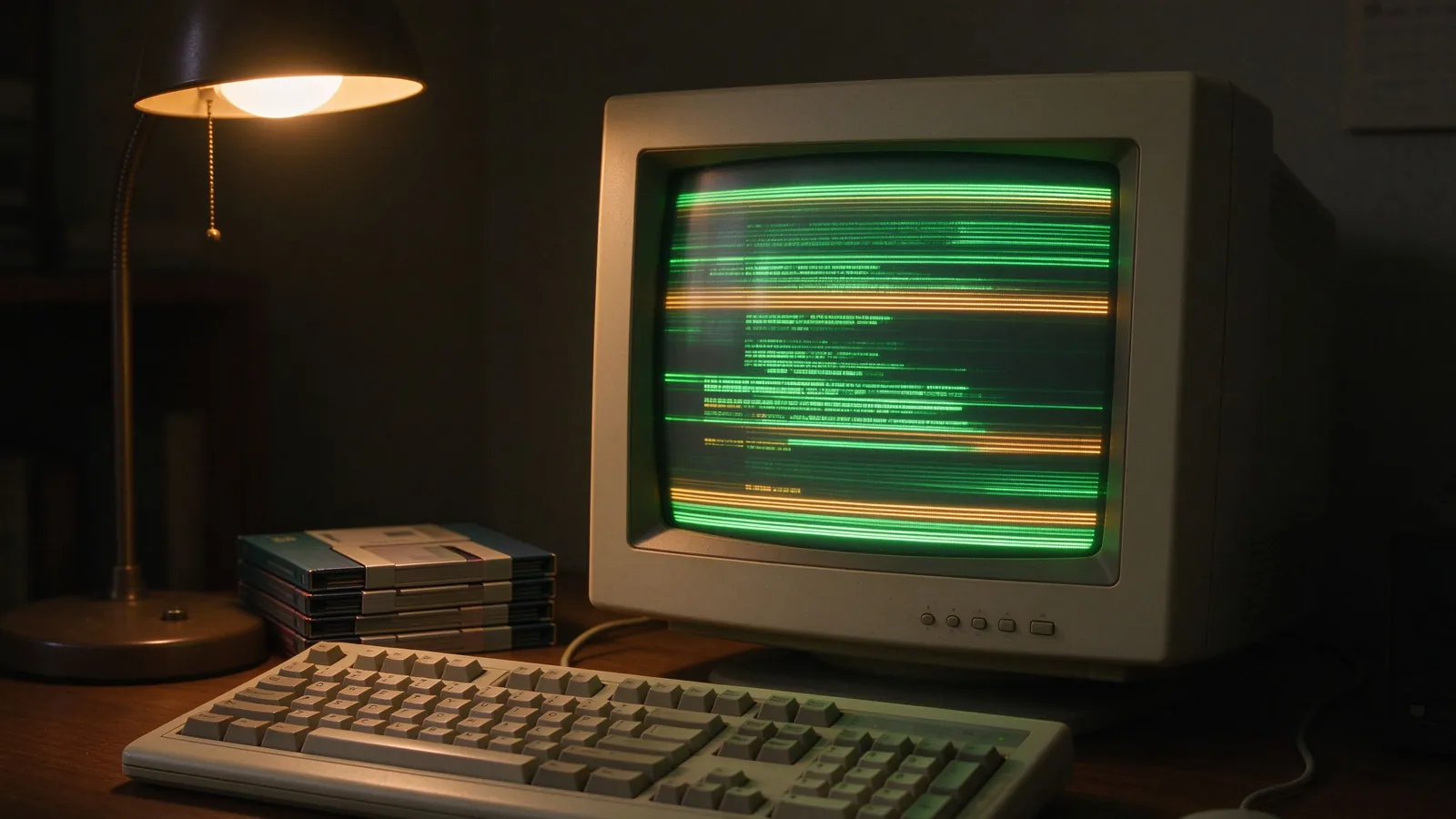
Classic DOS games assumed a 1990s PC, a Sound Blaster, and a slow processor; DOSBox rebuilds that machine inside a modern Windows window, and this guide covers the basics.
MS-DOS titles crash, run at blinding speed, or demand a mouse setup that no modern Windows program ever mentions. They were written for command lines, fixed memory limits, and sound cards most laptops shipped with decades ago. DOSBox solves the mismatch by emulating a whole old computer inside one window: CPU speed, sound chips, floppy and hard disk folders, and even the boot prompt. Learning a handful of commands turns a pile of old shareware and abandonware-style favorites into playable games on Windows 10 and 11.
Why DOS games break on modern Windows
Developers tuned releases against specific processors of the era. A game written for a 33 MHz machine could run on a 100 MHz machine with visible slowdowns, but on a 4 GHz modern CPU it skips past intro sequences before the title screen finishes. Direct hardware access, memory managers, and interrupt sound drivers vanished when 64-bit Windows removed real-mode support entirely. DOSBox recreates the old chipset and DOS environment in software, so the game believes it still runs on hardware that matches its assumptions. It does not patch the game; it supplies the surroundings the game expects.
Install DOSBox and map your folders
Install the stable release for Windows, then open the program to a black window with a Z:\> prompt. The core idea: turn a Windows folder on your real machine into a virtual drive inside DOSBox. Create a folder such as C:\DOS\GAMES, then at the prompt type mount c c:\dos\games and press Enter. Switch to it with c:. Games usually sit in subfolders; use cd plus the folder name to enter them. Many users add these mount lines to the DOSBox options file so the folder appears automatically every launch; the options file lives in the DOSBox configuration folder listed on the title bar.
Set CPU cycles so the speed feels right
On first boot DOSBox runs at a default cycle count that suits early games but feels too fast for mid-nineties titles. Press Ctrl+F12 to raise cycles and Ctrl+F11 to lower them while the game runs; watch for smooth movement versus choppy sound. Games with cycles=auto settings in their own launch configuration tune themselves, while classics like Ultima Underworld prefer a fixed number around the 10,000 to 30,000 range depending on the title. Save the chosen number into the options file or a per-game batch file, so speed stays consistent after a reboot. Too many cycles causes the classic audio chirp that signals the emulator and game disagree about timing.
Sound cards: Sound Blaster, AdLib, and MT-32
DOS games listed sound devices inside setup programs, not in Windows. Run the game’s setup.exe or install.exe once, pick Sound Blaster 16 with port 220, IRQ 7, DMA 1 for most titles, and save the choice. AdLib covers older two-chip FM music, while MT-32 music titles require the Roland instrument set; modern source ports include or bundle these assets legally where allowed. If music sounds like beeps while effects work, the music driver and SFX driver are set separately in that same setup screen. Verify both rows rather than only one.
Mouse, keyboard, and window play
Point-and-click adventures rely on the old mouse protocol; press Ctrl+F10 to capture the mouse inside DOSBox if the cursor refuses to respond, and Ctrl+F9 closes the emulator. Keyboard hotkeys often mirror the command line of the period, and joystick games can be mapped to a gamepad through DOSBox’s internal mapper if you prefer pads over keys. Full-screen mode via Alt+Enter removes window edges; aspect-ratio settings in the options file keep sprites from stretching on wide monitors. Keep game data on an SSD for quick loads; disk format matters little, but anti-virus scans on the mounted folder can trigger slowdowns during play.
Titles worth the setup and a preservation note
Shareware episodes such as the early Doom platform builds, Commander Keen episodes, Jazz Jackrabbit, and Duke Nukem show up legally through official shareware archives and homebrew releases. Point-and-click classics need scummVM or source ports rather than raw DOSBox for many titles, but DOSBox remains the backbone beneath those helpers. Long campaigns benefit from DOSBox’s built-in save slots and batch-file presets; our emulator basics guide compares save states against regular game saves when a campaign runs across many nights. Building a tidy folder of owned and public-domain titles keeps the library alive for years; see our notes on retro game preservation to understand why dumps, manuals, and disk images matter beyond the fun itself.