Mouse and Keyboard DOS and Windows 9x Games: Emulation Setup Tips
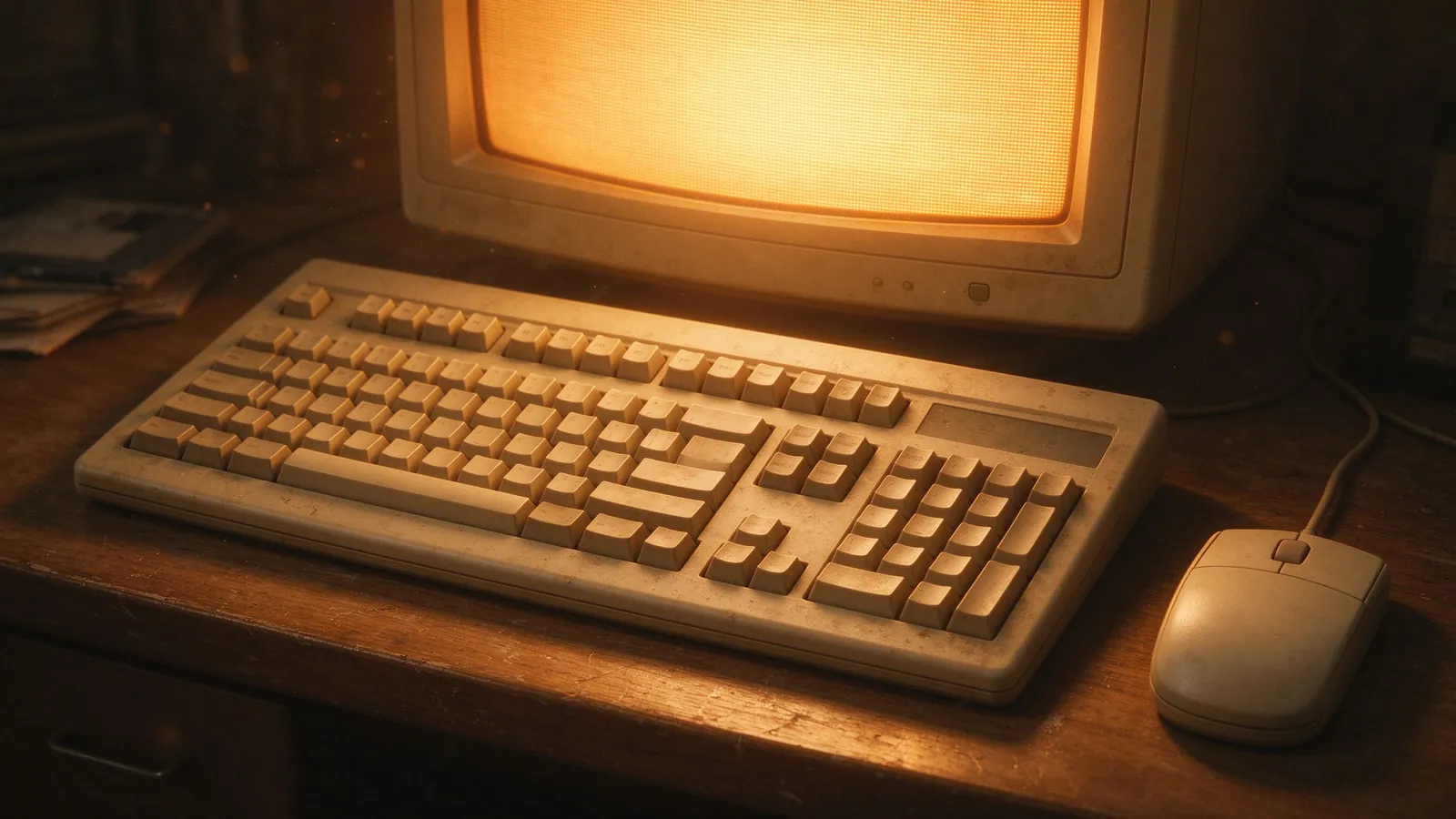
DOS and early Windows 9x games mixed keyboard arrows, letter-key actions and a two-button mouse, and these emulation setup tips cover drive mounting, sensitivity, mouse capture and the classic titles that reward proper input tuning.
Late-1980s and early-1990s MS-DOS games expected specific keyboards and mouse drivers, while Windows 95 or 98 titles added dialog boxes and compatibility layers. Emulators such as DOSBox recreate a DOS environment with a virtual C drive, mounting host folders as old disk volumes; 9x-era programs may need a guest environment with realistic cycles and sound. Modern keyboards and mice outrun the original hardware, so sensitivity and timing usually need adjustment rather than maximum speed. The goal is a readable cursor, reliable keystrokes and stable sound, with each title in its own folder.
Set up the virtual drive and cycles before changing input
Create a local game root such as dosgames with one folder per title, and mount that folder as drive C in the DOS emulation; inside DOSBox-style software this avoids writing deep host paths into old batch files. Keep installer files and configured game folders apart so a rerun never overwrites saved settings. Adjust CPU cycles conservatively after a title boots: old games measured speed against a fixed processor, and too-fast cycles break animation timing, music pitch and side-scroller scroll rates. Start with a default preset, increase performance only when a game reports waiting, and document the final cycle value in the folder note. Our DOSBox classic setup guide walks through mounting and sound-card basics that still apply to most keyboard-and-mouse titles.
Keyboard mapping for classic DOS controls
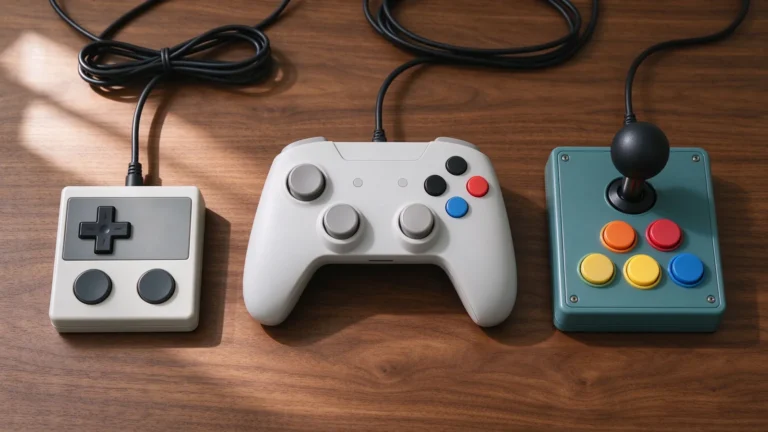
Many DOS platformers, shooters and strategy games use arrow keys for movement, Enter or Space for action, and letters such as F1 through F10 for menus. Modern laptop keyboards remapped for compact layouts may place arrows awkwardly, so a spare full-size USB keyboard or a gamepad with mapped keys often improves long sessions. Save a per-game key configuration where the installer provides one; mouse-only adventures can reserve function keys for quick menu shortcuts. Use a US English keyboard layout inside the emulated environment if the original software expected it, because regional layouts change key codes. Verify that hotkeys used by the emulator, such as pause, restart and quit, do not collide with in-game letter commands, and move those emulator hotkeys to less common combinations.
Mouse sensitivity, capture and the two-button era
Old DOS shooters and flight simulators responded to relative mouse movement rather than the modern smooth pointer, and many games recognized only two buttons. When the guest environment captures the mouse, movement should feel direct without large acceleration from the host; disable pointer enhancement in the host settings before testing, because acceleration destroys aim in a corridor shooter. Use the capture toggle to release the cursor back to Windows without crashing the game, and remap a third or modern mouse button to the secondary action only if the title supports it; spurious buttons can open menus unexpectedly. Keep sensitivity moderate and adjust within the game’s own options, since host-level acceleration layered on top compounds the problem. Point-and-click adventures prefer low, steady cursor motion, so tune those profiles separately from fast action titles.
Windows 9x-era compatibility and guest settings
Windows 95 or 98 programs often need a virtual guest machine with the right video mode, memory and shared drive rather than plain DOS emulation. Install the system image legally, use guest additions cautiously because modern ones can break old display modes, and keep a dedicated disk image per game group. Sound, CPU speed and mouse integration still matter inside the guest; a runaway clock makes menus flicker and games run too fast. Snapshots should mark a working install, not heavy registry changes. The emulator basics page notes that BIOS and system files come from owned media, with guest images archived outside the program folder.
Good starter titles and habits
- Keyboard-first DOS: classic side-scrolling platformers, tile-based strategy and puzzle games that rely on arrows and quick actions rather than fast aiming.
- Mouse-first DOS: shooters, flight simulations and point-and-click adventures that benefit from a captured, low-acceleration pointer.
- Windows 9x picks: late-90s action, adventure and card or strategy collections tested inside a stable guest disk image.
- Maintenance: per-game config notes, folder mounting instead of hard-coded paths, periodic snapshots, and backups of both host folders and guest images.
DOS and 9x emulation rewards careful defaults: a reasonable cycle preset, a clean mount folder, predictable keys and a steady mouse. Once one title boots and plays at the intended pace, the rest of the library adds incrementally without fighting the environment.